Tilemaps
How can I make a game with a grid-based layout?
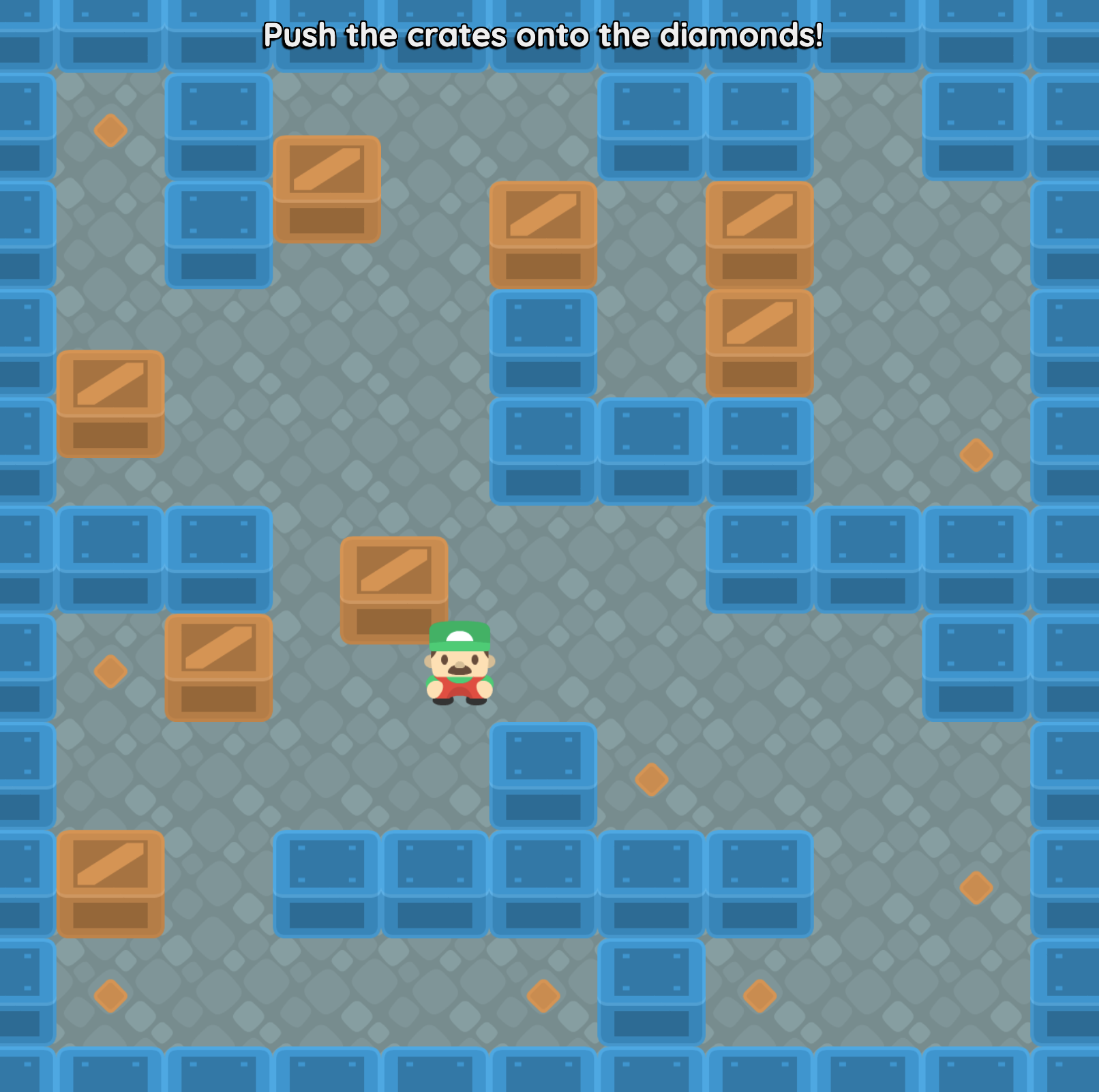
This is an example of a Sokoban-style game where the player pushes crates onto target locations. The level design follows a grid-based layout, with the crates all aligned to the grid. We use Tilemaps to represent the parts of the level that are fixed to the grid, while we use normal entities for the crates and the player, as they can move freely around the level.
Step 1: Level design
First, we need to design the level. We will represent the level as nested arrays of numbers, where each number represents a different type of tile:
// 0 - Floor
// 1 - Wall
// 2 - Hero
// 3 - Crate
// 4 - Goal
pub const Level1 = [
    [ 1, 1, 1, 1, 1, 1, 1, 1, 1, 1, 1 ],
    [ 1, 4, 1, 0, 0, 0, 1, 1, 0, 1, 1 ],
    [ 1, 2, 1, 3, 0, 3, 0, 3, 0, 0, 1 ],
    [ 1, 3, 3, 0, 0, 1, 0, 3, 0, 0, 1 ],
    [ 1, 0, 0, 0, 0, 1, 1, 1, 0, 4, 1 ],
    [ 1, 1, 1, 0, 0, 0, 0, 1, 1, 1, 1 ],
    [ 1, 4, 3, 0, 0, 0, 0, 0, 0, 1, 1 ],
    [ 1, 0, 0, 0, 0, 1, 4, 0, 0, 0, 1 ],
    [ 1, 3, 0, 1, 1, 1, 1, 1, 0, 4, 1 ],
    [ 1, 4, 0, 0, 0, 4, 1, 4, 0, 0, 1 ],
    [ 1, 1, 1, 1, 1, 1, 1, 1, 1, 1, 1 ],
]
Step 2: Spritesheet
For this game, we are using the Sokoban Asset Pack from Kenney. This asset pack comes with a Spritesheet that contains all the images packed into a single image file. This is how we import the spritesheet and extract the images we need for our game:
pub import TilesetImages from Spritesheet(@tileset.png, tileSize=128, count=104)
pub const HeroIdleS = TilesetImages[52]
pub const HeroIdleN = TilesetImages[55]
pub const HeroIdleE = TilesetImages[78]
pub const HeroIdleW = TilesetImages[81]
pub const HeroWalkingS = [TilesetImages[52], TilesetImages[53], TilesetImages[52], TilesetImages[54]]
pub const HeroWalkingN = [TilesetImages[55], TilesetImages[56], TilesetImages[55], TilesetImages[57]]
pub const HeroWalkingE = [TilesetImages[78], TilesetImages[79], TilesetImages[78], TilesetImages[80]]
pub const HeroWalkingW = [TilesetImages[81], TilesetImages[82], TilesetImages[81], TilesetImages[83]]
pub const CrateImage = TilesetImages[6]
pub const WallImage = TilesetImages[8]
pub const GoalImage = TilesetImages[25]
pub const FloorImage = TilesetImages[89]
Kenney is a great source of free game assets, check them out if you are looking for art for your game.
Step 3: Create a tilemap
Now we want to bring the level design to life.
We define a function called SpawnLevel which takes our level data as input and spawns the level in the game world.
This is the beginnings of the function:
pub fn scene.SpawnLevel(levelData) {
    use body=scene
    Body(pos=@(0, 0), immovable=true)
    TilemapSprite(layer=0)
    TilemapCollider(category=Category:Wall)
}
There are two kinds of tilemaps:
- TilemapSprite render a grid of images.
- TilemapCollider defines collision areas aligned to a grid.
We have now created our tilemaps, but they are empty.
Step 4: Fill the tilemap
Now we will iterate over every tile in the level data and spawn the appropriate tile in the tilemap.
For now, we will just handle walls, which are represented by the number 1 in our level data.
pub fn scene.SpawnLevel(levelData) {
    use body=scene
    Body(pos=@(0, 0), immovable=true)
    TilemapSprite(layer=0)
    TilemapCollider(category=Category:Wall)

    for row, rowData in levelData {
        numCols = numCols.Max(rowData.Length)
        for col, tileId in rowData {
            let coords = @(col, row)
            match tileId {
                1 => {
                    TileSprite(coords=, image=WallImage)
                    TileCollider(coords=, collide=true)
                },
            }
        }
    }

    return heroPos
}
Every wall tile becomes an image in the TilemapSprite in order to display it on screen,
and it also becomes a solid tile in the TilemapCollider so that the player cannot walk through it.
- To populate a
TilemapSprite, we use theTileSpritefunction, which takes the coordinates of the tile and the image to display. - To populate a
TilemapCollider, we use theTileColliderfunction, which takes the coordinates of the tile and whether it should be solid or not.
In this example, our scene entity has just one TilemapSprite and one TilemapCollider,
but you can have multiple tilemaps in a single entity.
See Tilemaps > Multiple Tilemaps to learn how.
Step 5: Spawn the entities
Not everything in the game will be on the tilemap, some are just regular entities that can move around freely.
pub fn scene.SpawnLevel(levelData) -> heroPos {
    use body=scene
    Body(pos=@(0, 0), immovable=true)
    TilemapSprite(layer=0)
    TilemapCollider(category=Category:Wall)

    let heroPos = @(0, 0)
    for row, rowData in levelData {
        for col, tileId in rowData {
            let coords = @(col, row)
            match tileId {
                1 => {
                    TileSprite(coords=, image=WallImage)
                    TileCollider(coords=, collide=true)
                },
                2 => { heroPos = coords },
                3 => Subspawn unit { Crate(pos=coords) },
                4 => Subspawn unit { Goal(pos=coords) }
            }
        }
    }

    return heroPos
}
- We are spawning the
Crateand theGoalas regular entities, because they can move around freely. - For the
Hero, we are simply just returning its position so that the caller can spawn it in the right place. It is not the responsibility of theSpawnLevelfunction to spawn the hero.
By default, tilemap coordinates and world coordinates are the same,
as long as you attach your tilemap to a Body positioned at the origin @(0,0).
That is why we can simply spawn the crates at the same coordinates as the tilemap, and they will line up.
See Tilemaps vs World Coordinates to learn more about why this is.
Step 6: Dimensions
One useful thing to do when spawning a level is to keep track of its dimensions. This will allow us to center the camera on the level, and also to draw a floor behind the tilemap that covers the dimensions of the entire level.
pub fn scene.SpawnLevel(levelData) -> heroPos {
    use body=scene
    Body(pos=@(0, 0), immovable=true)
    TilemapSprite(layer=0)
    TilemapCollider(category=Category:Wall)

    let heroPos = @(0, 0)
    let numRows = levelData.Length
    let numCols = 0
    for row, rowData in levelData {
        numCols = numCols.Max(rowData.Length)
        for col, tileId in rowData {
            let coords = @(col, row)
            match tileId {
                1 => {
                    TileSprite(coords=, image=WallImage)
                    TileCollider(coords=, collide=true)
                },
                2 => { heroPos = coords },
                3 => Subspawn unit { Crate(pos=coords) },
                4 => Subspawn unit { Goal(pos=coords) }
            }
        }
    }

    let center = @(numCols-1, numRows-1) / 2 // when there are 11 rows, the middle row is row 5
    Camera(body=center, radius=@(numCols/2, numRows/2))
    ImageSprite(body=center, image=FloorImage, radius=0.5, repeatX=numCols, repeatY=numRows, layer=-100)

    return heroPos
}
- In our game, there are 11 rows and 11 columns, so the center of the level is at row 5, column 5. We are calculating this from the data so that it is easy to support levels of different sizes.
- We are creating a single
ImageSpritethat is repeated across the entire level to represent the floor. If the floor was more interesting than just the same image repeated, we could use aTilemapsSpritefor the floor as well, but in this case that would be overkill.
Step 7: Gameplay
The rest of the game is not specific to tilemaps, so we won't go into detail here.
Take a look at the full code listing below to see how we made the Hero move around
and how we detect when the player has won the game by pushing all the crates onto the goals.
Full Code Listing
To learn more about the features used in this example, see Tilemaps and Spritesheets.
pub tangible category Category:Hero
pub tangible category Category:Wall
pub tangible category Category:Crate
pub tangible category Category:Goal

pub import TilesetImages from Spritesheet(@tileset.png, tileSize=128, count=104)
pub const HeroIdleS = TilesetImages[52]
pub const HeroIdleN = TilesetImages[55]
pub const HeroIdleE = TilesetImages[78]
pub const HeroIdleW = TilesetImages[81]
pub const HeroWalkingS = [TilesetImages[52], TilesetImages[53], TilesetImages[52], TilesetImages[54]]
pub const HeroWalkingN = [TilesetImages[55], TilesetImages[56], TilesetImages[55], TilesetImages[57]]
pub const HeroWalkingE = [TilesetImages[78], TilesetImages[79], TilesetImages[78], TilesetImages[80]]
pub const HeroWalkingW = [TilesetImages[81], TilesetImages[82], TilesetImages[81], TilesetImages[83]]
pub const CrateImage = TilesetImages[6]
pub const WallImage = TilesetImages[8]
pub const GoalImage = TilesetImages[25]
pub const FloorImage = TilesetImages[89]

// 0 - Floor
// 1 - Wall
// 2 - Hero
// 3 - Crate
// 4 - Goal
pub const Level1 = [
    [ 1, 1, 1, 1, 1, 1, 1, 1, 1, 1, 1 ],
    [ 1, 4, 1, 0, 0, 0, 1, 1, 0, 1, 1 ],
    [ 1, 2, 1, 3, 0, 3, 0, 3, 0, 0, 1 ],
    [ 1, 3, 3, 0, 0, 1, 0, 3, 0, 0, 1 ],
    [ 1, 0, 0, 0, 0, 1, 1, 1, 0, 4, 1 ],
    [ 1, 1, 1, 0, 0, 0, 0, 1, 1, 1, 1 ],
    [ 1, 4, 3, 0, 0, 0, 0, 0, 0, 1, 1 ],
    [ 1, 0, 0, 0, 0, 1, 4, 0, 0, 0, 1 ],
    [ 1, 3, 0, 1, 1, 1, 1, 1, 0, 4, 1 ],
    [ 1, 4, 0, 0, 0, 4, 1, 4, 0, 0, 1 ],
    [ 1, 1, 1, 1, 1, 1, 1, 1, 1, 1, 1 ],
]

pub game fn World.Main() {
    SolidBackground(#333)

    loop {
        await Spawn scene {
            ToolbarRight {
                FlatButton(KeyR, backgroundColor=Color:Primary) { "Reset" }
            }

            let heroPos = SpawnLevel(Level1)
            GoalSystem

            SpawnEachPlayer owner {
                on ButtonDown(KeyR) {
                    scene.Expire
                }
                Subspawn unit {
                    DespawnBefore(scene)
                    Hero(pos=heroPos)
                }
            }
        }
    }
}

pub fn scene.SpawnLevel(levelData) -> heroPos {
    use body=scene
    Body(pos=@(0, 0), immovable=true)
    TilemapSprite(layer=0)
    TilemapCollider(category=Category:Wall)

    let heroPos = @(0, 0)
    let numRows = levelData.Length
    let numCols = 0
    for row, rowData in levelData {
        numCols = numCols.Max(rowData.Length)
        for col, tileId in rowData {
            let coords = @(col, row)
            match tileId {
                1 => {
                    TileSprite(coords=, image=WallImage)
                    TileCollider(coords=, collide=true)
                },
                2 => { heroPos = coords },
                3 => Subspawn unit { Crate(pos=coords) },
                4 => Subspawn unit { Goal(pos=coords) }
            }
        }
    }

    let center = @(numCols-1, numRows-1) / 2 // when there are 11 rows, the middle row is row 5
    Camera(body=center, radius=@(numCols/2, numRows/2))
    ImageSprite(body=center, image=FloorImage, radius=0.5, repeatX=numCols, repeatY=numRows, layer=-100)

    return heroPos
}

pub fn scene.GoalSystem() {
    with NumGoalsTouched {
        if NumGoalsTouched < NumGoals {
            TopContent<instructions> {
                P(fontSize=1.5, bold=true) {
                    if NumGoalsTouched == 0 {
                        "Push the crates onto the diamonds!"
                    } else {
                        %((NumGoals - NumGoalsTouched) + " to go!")
                    }
                }
            }
        } else {
            delete TopContent<instructions>
            OverlayContent {
                Standout { FlyInChars("You win!") }
            }
            break
        }
    }
}

pub prop unit.Facing = @(0, 1)
pub prop unit.IsWalking = false
pub fn unit.Hero(pos, [owner]) {
    use body=this, radius=0.5
    Body(pos=, noRotation=true)
    PolygonCollider(
        category=Category:Hero,
        shape=Rectangle(width=0.5*radius, height=width), // smaller than a tile to make it easier to navigate
        density=5,
        intercept=true,
    )

    with IsWalking, Facing {
        let image = match IsWalking, Facing {
            (false, @(0, 1)) => HeroIdleS,
            (false, @(0, -1)) => HeroIdleN,
            (false, @(1, 0)) => HeroIdleE,
            (false, @(-1, 0)) => HeroIdleW,
            (true, @(0, 1)) => HeroWalkingS,
            (true, @(0, -1)) => HeroWalkingN,
            (true, @(1, 0)) => HeroWalkingE,
            (true, @(-1, 0)) => HeroWalkingW,
        }
        ImageSprite(image=, frameInterval=0.2s)
    }
    DecaySpeed(1)

    on BeforePhysics {
        if Joystick == @(0, 0) {
            IsWalking = false
        } else {
            Move(0.04 * Joystick)
            IsWalking = true
            Facing = (
                if Joystick.X != 0 {
                    @(Joystick.X.Sign, 0)
                } else {
                    @(0, Joystick.Y.Sign)
                }
            )
        }
    }
}

pub collect World.NumGoalsTouched ~ Count
pub collect World.NumGoals ~ Count
pub prop unit.IsTouchingGoal = false
pub fn unit.Crate(pos) {
    use body=unit, radius=0.5

    // Soften the edges of the crate so don't have to line it up perfectly to push it into a gap
    const SoftenRatio = 0.4
    let shape = Rectangle(
        width=2*radius*(1-SoftenRatio), height=width,
        border=SoftenRatio*radius,
    )

    Body(pos=, noRotation=true)
    PolygonCollider(category=Category:Crate, shape=)

    with IsTouchingGoal {
        ImageSprite(
            image=CrateImage,
            color=(IsTouchingGoal ? #999 : #fff),
        )
    }
    DecaySpeed(1)

    on BeforeCollide that {
        if that.Category.Overlaps(Category:Goal) {
            IsTouchingGoal = true
            give<touchingGoal> NumGoalsTouched(this)
        }
    }
    on AfterCollide that {
        if that.Category.Overlaps(Category:Goal) {
            IsTouchingGoal = false
            delete give<touchingGoal>
        }
    }
}

pub fn unit.Goal(pos) {
    use body=unit, radius=0.5

    Body(pos=, immovable=true)
    PolygonCollider(category=Category:Goal, shape=Circle(0.05*radius), sense=true)
    ImageSprite(image=GoalImage, layer=-10)
    give World.NumGoals(this)
}