Tiled (Level Editor)
If I make my levels using a dedicated map editor program like Tiled, how can I import those levels into Easel?
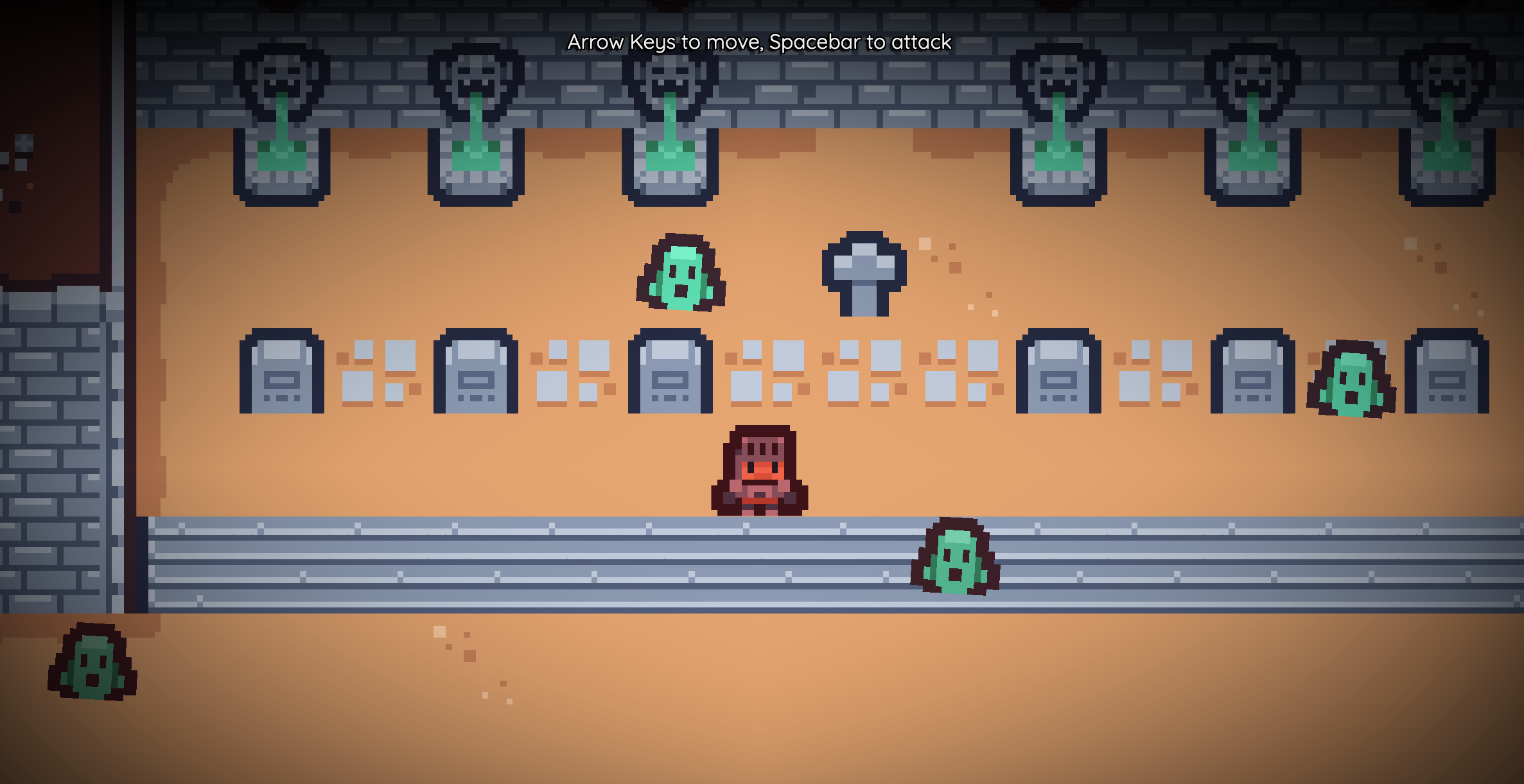
This is an example of a game where a hero walks around a dungeon and kills monsters. The dungeon is made using Tiled, a popular map editor for 2D games, and then brought to life in Easel using Tilemaps, Spritesheets and Data Files. Using a dedicated map editor lets us create levels that are much more rich and interesting than if we were to create them programmatically.
Step 1: Make a subfolder for your Tiled project
The easiest way to work with Tiled and Easel together is to create a subfolder
called tiled in your Easel project, and put all your entire Tiled project in there,
including any images used by the Tiled project.
This way, both Easel and Tiled can find the files they need without any problems.
For this workflow to work, you must be using Google Chrome or Microsoft Edge as your browser so you can work directly with files on your local computer. At this time, Safari and Firefox do not support this feature. See Editing a Folder on Your Computer to learn more about this.
This is the easiest way to setup your Easel project to work with Tiled:
- Go to the Editor and create a new project.
- Go to
easel.tomland name your projectTiny Dungeon(or whatever you want to call it). - Save your project to disk using the Save button in the toolbar.
You could save to a folder called
Tiny Dungeoninside your Documents folder, for example. - Now, on your computer, go to your
Tiny Dungeonfolder create a subfolder calledtiledin your project folder.
Step 2: Create a Tileset in Tiled
Now we have created a folder to store our Tiled project, the first step to creating a level is creating a tileset. A tileset is the set of tiles that we will use to draw our level.
Step 2a: Acquire assets
For this example, we will use the Tiny Dungeon tileset by Kenney. Included in this tileset is a single image spritesheet that looks like this:

Step 2b: Put the assets in the right place
Copy the tileset spritesheet image into the tiled folder in your Easel project, giving it a name like tileset.png.
Make sure all images you use in your Tiled project are in the tiled folder (or a subfolder of the tiled folder)
so both Easel and Tiled can find them.
Step 2c: Create a Tileset in Tiled
Next we will use this spritesheet to create a tileset in Tiled.
Open Tiled and create a new tileset using the tileset.png image you just copied into your project:
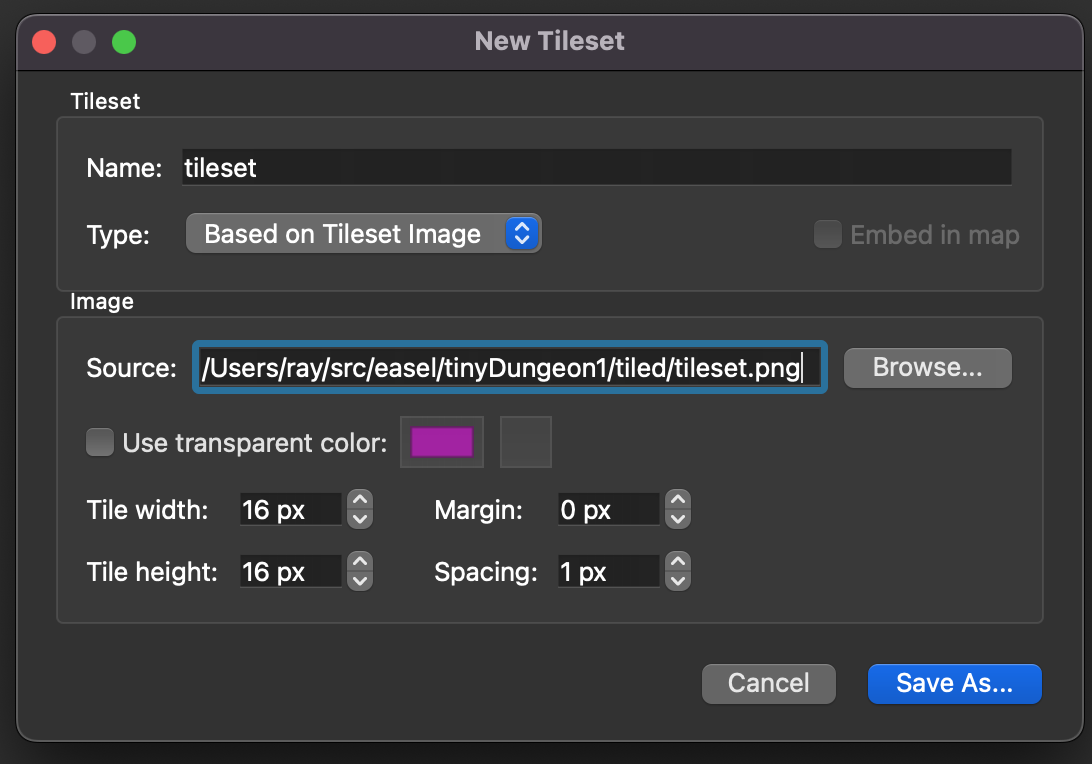
Save your new tileset as tileset.tsx in the tiled folder in your Easel project.
You can simply click "New Tileset" in Tiled and then select the tileset.png image to create a new tileset.
You do not need to create a new Tiled project first.
Step 3: Create a Level in Tiled
Now that we have a tileset, we are ready to create a level using it.
Step 3a: Create a Tiled map file
Create a new map in Tiled:
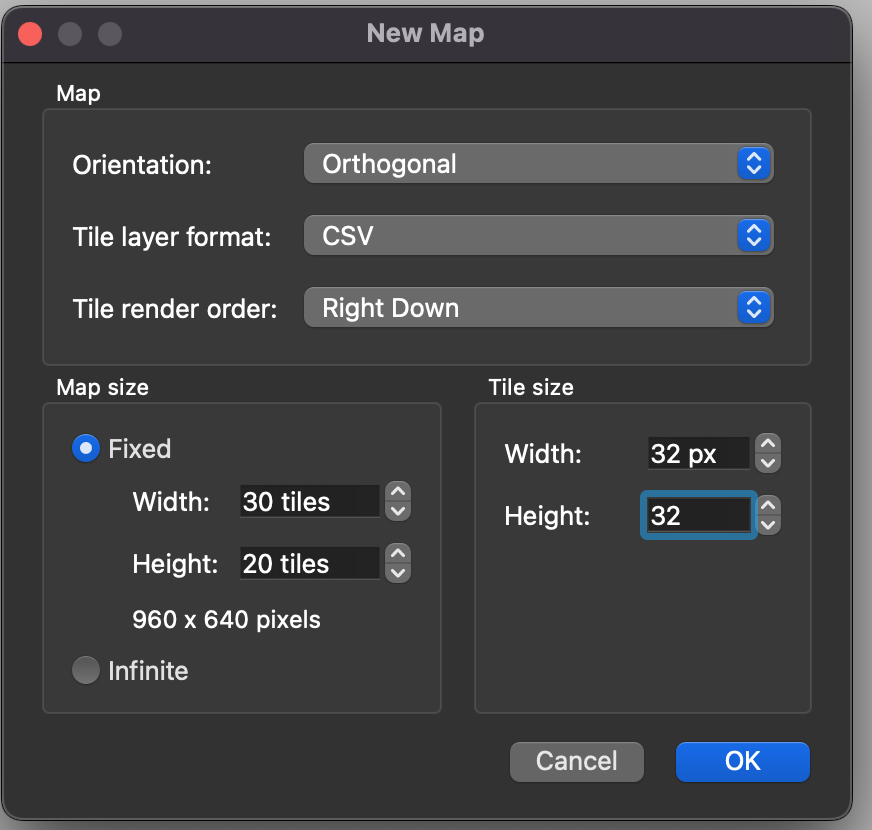
Save the map as level1.tmx in the tiled folder in your Easel project.
Step 3b: Draw your level
Now it is time to get creative! Draw your map using all the tools in Tiled. Draw floors, walls, doors, and anything else you want in your level.
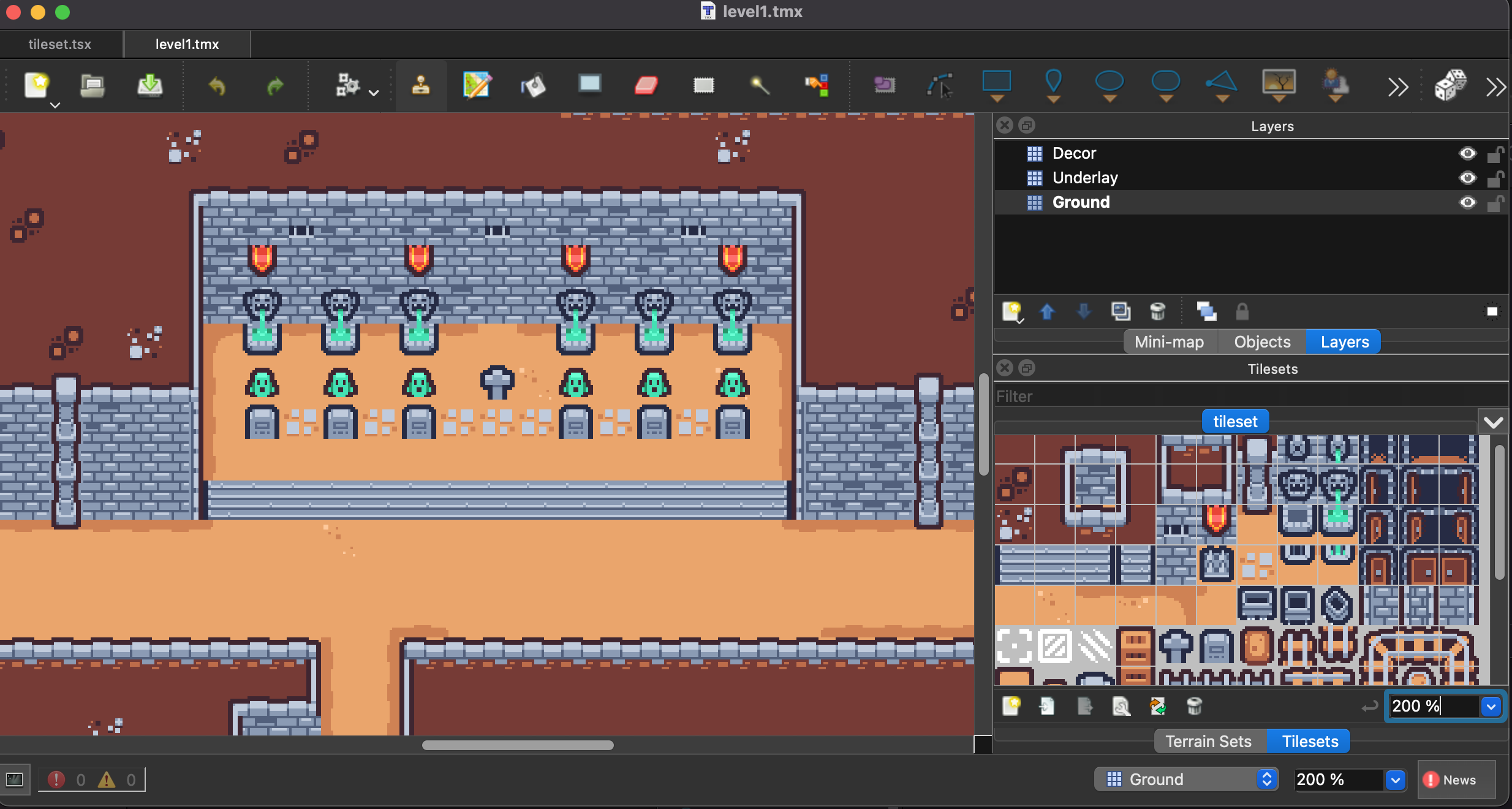
In our example, we have drawn our map on three layers:
- The Ground layer contains the floor and wall tiles.
- The Underlay layer contains tiles that the player can walk over, but still need to be drawn on top of the ground because the images contain some transparency, for example the train tracks.
- The Decor layer contains tiles that are on the same rendering layer as the player, for example all the monsters, but also things like barrels, tables, and chests. The player can walk behind or in front of these tiles, depending on the Y-sorting.
Step 4: Add Metadata
In order to bring our level to life, we need to add some properties to the tileset so that Easel knows what to do with each tile.
Step 4a: Solid tiles
The hero should not be able to walk through walls, so we need to mark the wall tiles as solid. Chests, tables, tombstones and other obstacles should also be solid.
In our example, we are going to put this metadata on the tileset itself.
Go to your tileset and add a boolean property called isSolid to all the tile types that should be solid,
setting it to On:
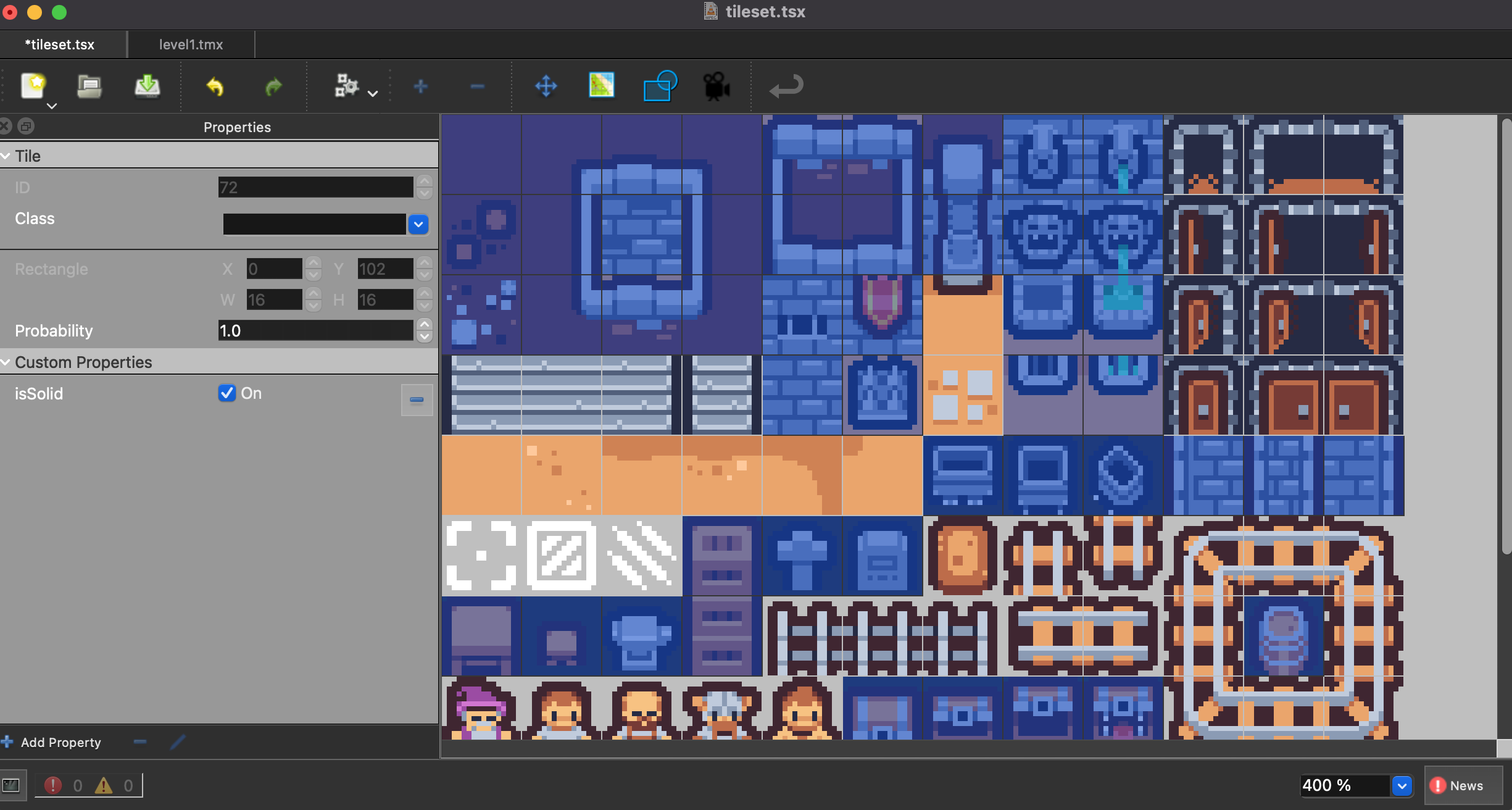
Step 4b: Monster tiles
Wherever we have drawn a monster in our level, we want it to come to life and start moving around and attacking the hero.
Add an isMonster boolean property to all the monster tile types, setting it to On:
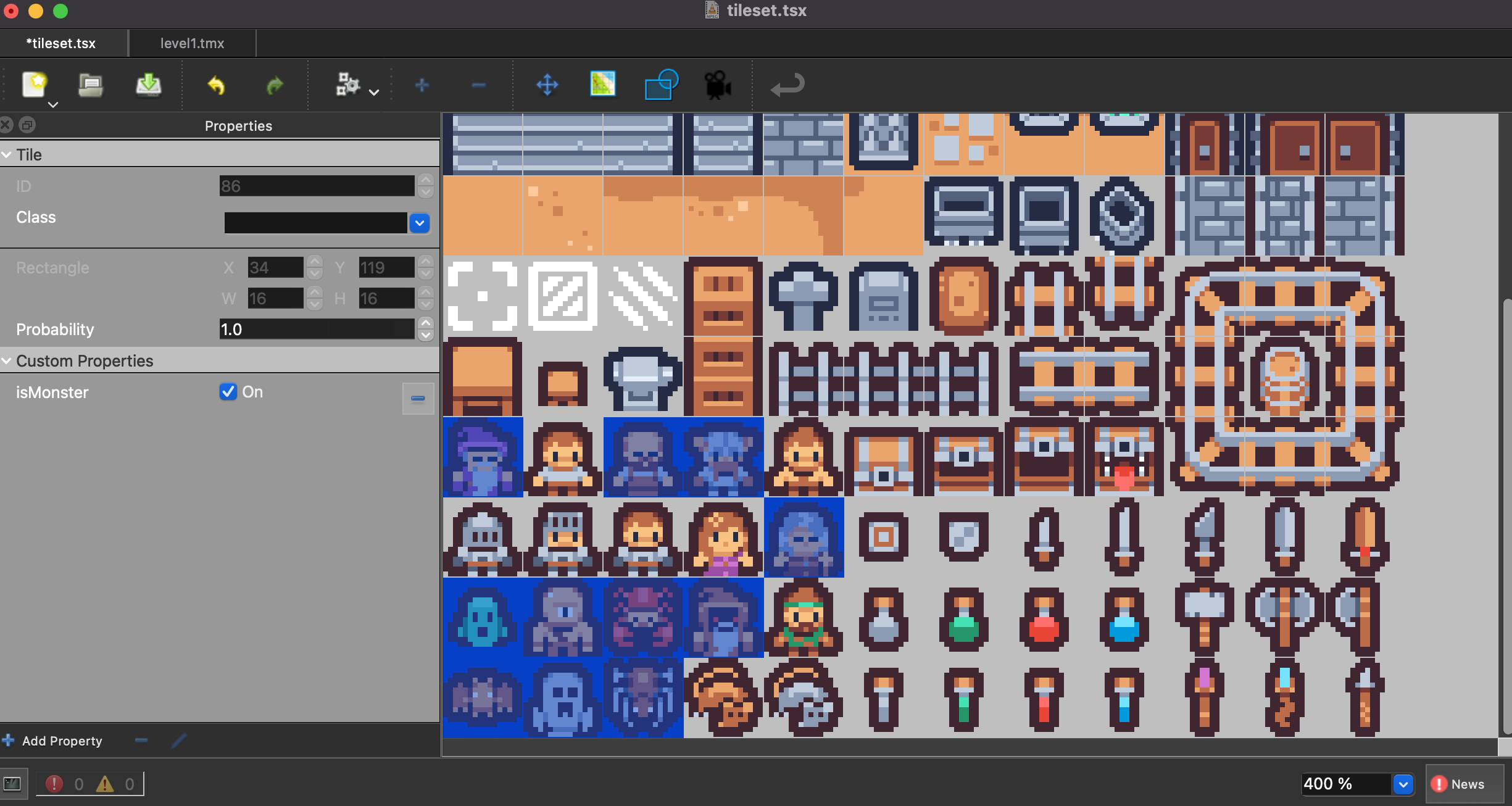
A more sophisticated game may have more data than just isMonster.
For example, you might have a monsterType property that specifies what kind of monster it is.
You could even store the monster's health, attack power, and other stats in the tileset itself.
Step 4c: Layer levels
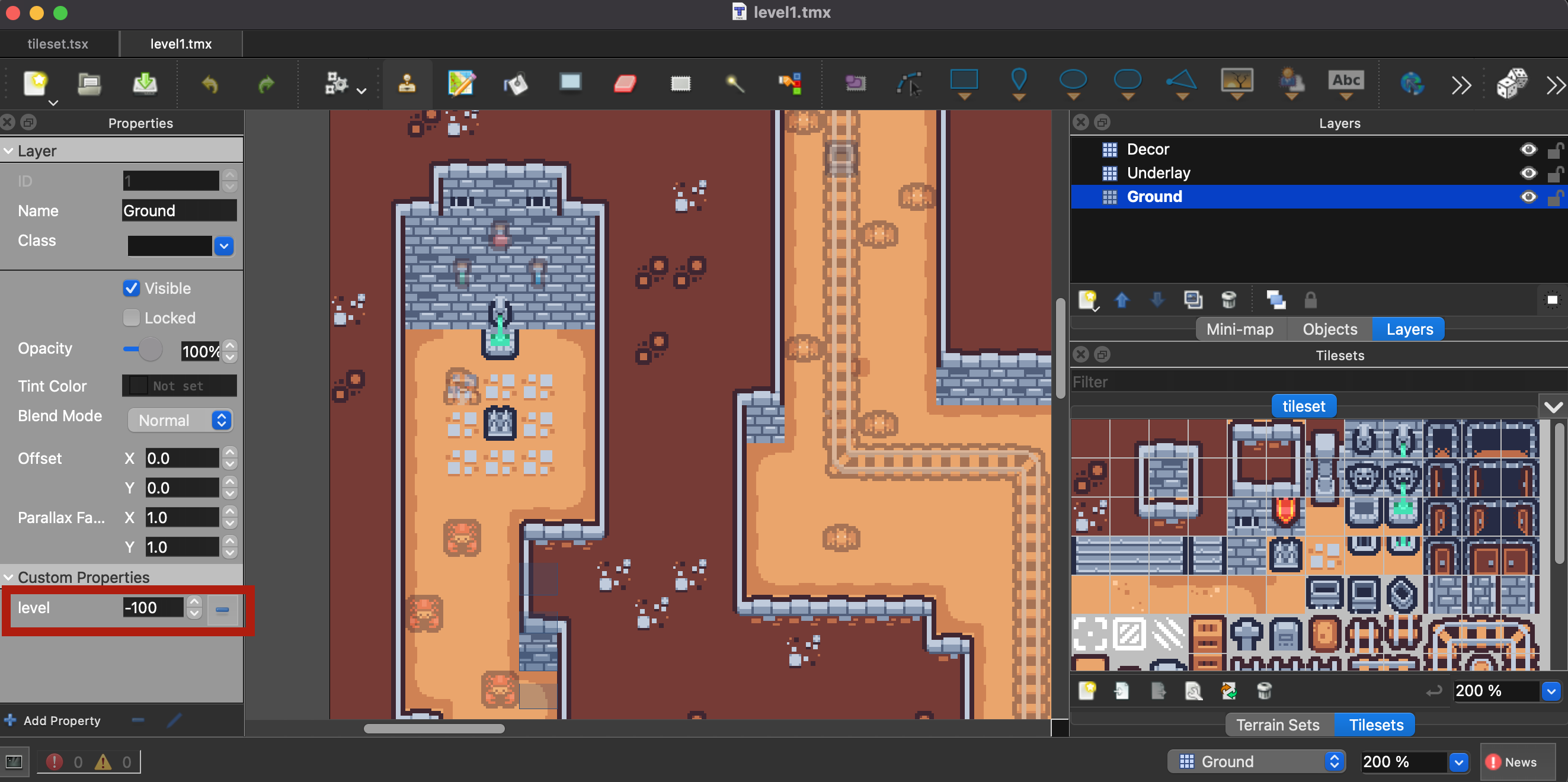
Each layer also needs to know what level it should be drawn at. In our example:
- The Ground layer will be drawn at level
-100so that it is below everything. - The Underlay layer will be drawn at level
-50so that it is above the ground but below the hero and monsters. - The Decor layer will be drawn at level
0so that it is on the same level as the hero and monsters.
We can do this by creating a new property called level on each layer, and setting it to the appropriate value:
Step 5: Export
Export both your Tiled map file and your Tiled tileset file as JSON files, so that Easel can read them.
In our example, we want to export our file level1.tmx as level1.json, and our file tileset.tsx as tileset.json.
To do this, simply use Tiled's File > Export feature, and give it the .json extension when choosing the filename.
Your exported files should go into the tiled folder next to the original Tiled files.
Your exported files will reference each other on disk using their file paths.
Notably, the tileset.json file will reference the tileset.png image file by its filename.
If you export tileset.json to a different folder than where tileset.png,
Tiled will generate a relative path back to the original image file,
going up as many folders as necessary to find it.
If the relative path leaves your Easel project folder, Easel will not be able to follow it.
This is why we recommend putting all your Tiled files and images in the same folder, as it ensures that both Easel and Tiled can find the files they need without any problems.
Step 6: Import into Easel
Now we are ready to import our level data into Easel. We will need to import the spritesheet, the tileset, and the level itself.
Step 6a: Import the Spritesheet
First, Easel needs the images that make up the tileset, and to do that, we will use the Spritesheet feature in Easel:
pub import TilesetImages from Spritesheet(@tileset.png, gap=1, tileSize=16, count=132)
pub const HeroImage = TilesetImages[97]
pub const SwordImage = TilesetImages[104]
Notice we also define two constants HeroImage and SwordImage that point to the images of the hero and sword in the tileset,
so we can use them later in our game. In a more sophisticated game,
you could discover these images through metadata in the tileset instead of hardcoding them.
Here we specify count=132 because there are 132 tiles in the spritesheet.
This is a required parameter in Easel because it means in a multiplayer game,
the game can start even if some players have not yet downloaded the spritesheet.
You can get the count of tiles in your spritesheet by selecting the last tile in the tileset in Tiled, and looking at the Tile ID in the Properties panel. If your last tile has a Tile ID of 131, then your count is 132 because the first tile has a Tile ID of 0.
Step 6b: Import the Tileset
Next, we will import the tileset.json file that we exported from Tiled,
including the custom properties that we defined.
To do this, we will use the Data Files feature in Easel:
pub import TilesetData from @tileset.json as {
    tiles as {
        [id as Number] = {
            properties? as { [name as Symbol] = value }
        }
    },
}
This import reads the data from the JSON file and converts it to the given Schema
so that it is ready to use in Easel.
In particular, the { [id as Number] = ... } syntax creates a lookup of tiles by their tile ID,
so that if we have a given tile ID, we can immediately find its properties.
Step 6c: Import the Level
Finally, we will import the level1.json file that we exported from Tiled:
pub import Level1Data from @level1.json as {
    width as Number,
    height as Number,
    layers as [{
        name as String,
        data? as [Flags],
        properties? as { [name as Symbol] = value },
    }],
}
pub const Tile:FlipHorizontal  = 0x80000000
pub const Tile:FlipVertical    = 0x40000000
pub const Tile:FlipDiagonal    = 0x20000000
Of all the fields that we import, the data field of each layer is the most important part of the level,
as it contains the tile IDs that identify which tile is drawn at each coordinate in the level.
Notice that we import the data field of each layer as an Array of
Flags instead of Number.
This is because Tiled packs in flipping and rotation flags
into each tile ID.
We have defined these flags here as constants Tile:FlipHorizontal, Tile:FlipVertical, and Tile:FlipDiagonal
so that we can decode them out of the tile ID later.
If you have more than one level, you can use a wildcard import to import all of them at once. See Data > Multi-file Import for more information.
Step 7: Spawn the Level
Now that we have imported the level data, we can use it to spawn the level in our game.
Step 7a: Spawning one tilemap layer
We are going to import the level one layer at a time.
We will declare a function SpawnTilemap to spawn a single layer of the level.
This involves looping over all the tiles in the layer and taking the appropriate action.
pub fn tilemap.SpawnTilemap(layerData, numCols) {
    use body=tilemap

    Body(pos=@(0, 0), immovable=true)
    TilemapSprite(layer=layerData.properties.level)
    TilemapCollider(category=Category:Wall)

    for i, tileCode in layerData.data {
        if !tileCode { continue }

        let coords=@(i % numCols, Floor(i / numCols))
        let tileId = (tileCode & 0xffffff).ToNumber - 1
        let image = TilesetImages[tileId]
        if !image { return }

        let tileProps = TilesetData.tiles[tileId].properties
        if tileProps.isMonster {
            Subspawn unit {
                Monster(image=, pos=coords)
            }
        } else {
            TileCollider(coords=, collide=tileProps.isSolid)

            let scale = @(1, 1)
            let angleOffset = 0rev
            if tileCode.Overlaps(Tile:FlipHorizontal) { scale *= @(-1, 1) }
            if tileCode.Overlaps(Tile:FlipVertical) { scale *= @(1, -1) }
            if tileCode.Overlaps(Tile:FlipDiagonal) {
                scale *= @(-1, 1)
                angleOffset += 0.25rev
            }
            TileSprite(coords=, image=, scale=, angleOffset=)
        }
    }
}
Notice that this function creates two kinds of tilemaps:
- We call TilemapSprite to create a grid of tiles that are drawn on the screen. We then call TileSprite to define what to display a particular tile.
- We call TilemapCollider to create a grid of tiles for the physics engine. We then call TileCollider to define whether a particular tile is solid or not. Solid tiles will block the hero and monsters from walking through them.
Also notice that if a tile contains a monster, we spawn a Monster entity at that location
instead of modifying the TilemapCollider or TilemapSprite.
Step 7b: Spawning the whole level
We define a SpawnLevel function that will spawn each layer of the level using the SpawnTilemap function
we defined above.
pub fn scene.SpawnLevel(levelData) {
    let numCols = levelData.width
    for layerData in levelData.layers {
        Subspawn tilemap {
            SpawnTilemap(layerData=, numCols=)
        }
    }
}
Step 7c: Calling SpawnLevel in Main
Finally, we call SpawnLevel in our Main function to spawn the level when the game starts.
We pass in the Level1Data that we imported from the level1.json file:
pub game fn World.Main() {
    Spawn scene {
        SpawnLevel(Level1Data)
    }
The entire level is spawned into an entity called scene.
This means if we want to unload this level and load a different one,
we could simply despawn the scene entity and spawn a new one.
Step 8: Gameplay
We now can spawn a level that we created in Tiled!
We still need to define the Monster function and spawn the Hero that the player controls.
Since these are not specific to importing a level from Tiled, we will not go into detail about them here,
but you can see a working example of these in the full code listing below.
Full Code Listing
To learn more about the features used in this example, see the pages on Tilemaps, Data Files and Spritesheets.
pub tangible category Category:Hero
pub tangible category Category:Monster
pub tangible category Category:Wall

pub import TilesetImages from Spritesheet(@tileset.png, gap=1, tileSize=16, count=132)
pub const HeroImage = TilesetImages[97]
pub const SwordImage = TilesetImages[104]

pub import TilesetData from @tileset.json as {
    tiles as {
        [id as Number] = {
            properties? as { [name as Symbol] = value }
        }
    },
}

pub import Level1Data from @level1.json as {
    width as Number,
    height as Number,
    layers as [{
        name as String,
        data? as [Flags],
        properties? as { [name as Symbol] = value },
    }],
}
pub const Tile:FlipHorizontal  = 0x80000000
pub const Tile:FlipVertical    = 0x40000000
pub const Tile:FlipDiagonal    = 0x20000000

pub game fn World.Main() {
    Vignette

    ButtonRemap(Click, KeySpacebar)
    TopContent {
        P {
            TouchscreenOnly { "Joystick to move, Tap to attack" }
            NonTouchscreenOnly { "Arrow Keys to move, Spacebar to attack" }
        }
    }
    BottomLeftContent {
        TouchscreenOnly {
            VirtualJoystick(radius=8, padding=1)
        }
    }

    Spawn scene {
        SpawnLevel(Level1Data)
    }

    SpawnEachPlayer owner {
        await Subspawn unit {
            Hero
        }

        OverlayContent {
            VStack(align=Align:Center) {
                Standout { "You died!" }
                RaisedButton(Main, backgroundColor=Color:Primary) { "Play Again" }
            }
        }
    }
}

// ============================== Tilemaps ==============================
pub fn scene.SpawnLevel(levelData) {
    let numCols = levelData.width
    for layerData in levelData.layers {
        Subspawn tilemap {
            SpawnTilemap(layerData=, numCols=)
        }
    }
}

pub fn tilemap.SpawnTilemap(layerData, numCols) {
    use body=tilemap

    Body(pos=@(0, 0), immovable=true)
    TilemapSprite(layer=layerData.properties.level)
    TilemapCollider(category=Category:Wall)

    for i, tileData in layerData.data {
        if !tileData { continue }

        let coords=@(i % numCols, Floor(i / numCols))
        let tileId = (tileData & 0xffffff).ToNumber - 1
        let image = TilesetImages[tileId]
        if !image { return }

        let tileProps = TilesetData.tiles[tileId].properties
        if tileProps.isMonster {
            Subspawn unit {
                Monster(image=, pos=coords)
            }
        } else {
            TileCollider(coords=, collide=tileProps.isSolid)

            let scale = @(1, 1)
            let angleOffset = 0rev
            if tileData.Overlaps(Tile:FlipHorizontal) { scale *= @(-1, 1) }
            if tileData.Overlaps(Tile:FlipVertical) { scale *= @(1, -1) }
            if tileData.Overlaps(Tile:FlipDiagonal) {
                scale *= @(-1, 1)
                angleOffset += 0.25rev
            }
            TileSprite(coords=, image=, scale=, angleOffset=)
        }
    }
}

// ============================== Units ==============================
pub prop unit.Facing = 1
pub fn unit.Hero(image=HeroImage, [owner]) {
    use body=this, radius=0.5, shape=Circle

    Body(pos=@(42, 62))
    Camera(radius=5)
    PolygonCollider(category=Category:Hero, intercept=true)
    DecaySpeed
    DecayTurnRate
    HealthSystem(ghostImage=image, maxHealth=100)

    with Facing, Health {
        ImageSprite(
            image=, imageAnchor=@(0, 1), screenOffset=@(0, 0.5),
            bodyScale=@(Facing, 1), noRotation=true,
            color=(Health / MaxHealth).Mix(#f00, #fff),
        )
    }

    on BeforePhysics {
        if Joystick.IsEmpty { continue }
        Move(0.05*Joystick)
        Wiggle(rotate=0.02rev)

        if Joystick.X != 0 {
            Facing = Joystick.X.Sign
        }
    }

    on ButtonDown(KeySpacebar) {
        let target = QueryNearest(filter=Category:Monster, maxDistance=10)
        let strikeOffset = target ? (target.Pos - Pos).Truncate(1) : @(0, -1)
        ImageSpark(
            image=SwordImage, imageAnchor=@(0, 1), layer=1,
            dissipate=0.25s, taper=0, fade=1, turnRate=0.5rev,
            heading=(strikeOffset.Angle - (turnRate*0.5*dissipate/1s)),
            bodyOffset=@(0.1, 0), angleOffset=0.25rev
        )
        for monster in (Pos + strikeOffset).QueryWithinRadius(radius=0.5, filter=Category:Monster) {
            let knockback = 20 * (monster.Pos - unit.Pos).Direction
            monster.Velocity += knockback
            monster.Health -= 40
            monster.Strobe(shine=0.5, growth=0.1)
        }
        await Tick(0.33s)
    }

    on Tick(1s) {
        for that in QueryWithinRadius(radius=10, filter=Category:Monster) {
            that.Wake
        }
    }
}

pub signal unit.Wake
pub fn unit.Monster(image, pos, maxHealth=100, huntRadius=10) {
    use body=this, radius=0.5, shape=Circle

    Body(pos=, noRotation=true)
    PolygonCollider(category=Category:Monster, intercept=true)
    DecaySpeed(0.05)
    HealthSystem(ghostImage=image, maxHealth=)

    with Facing, Health {
        ImageSprite(
            image=,
            imageAnchor=@(0, 1), screenOffset=@(0, 0.5),
            bodyScale=@(Facing, 1), noRotation=true,
            color=(Health/MaxHealth).Mix(#f88, #fff),
        )
    }

    on BeforeCollide that {
        if that.Category.Overlaps(Category:Hero) {
            while QueryAnyContact(that=) {
                that.Health -= 10
                await Tick(1s)
            }
        }
    }

    on Wake {
        let hero = QueryNearest(filter=Category:Hero, maxDistance=huntRadius)
        while hero.Exists {
            let delta = hero.Pos - Pos
            if delta.Length > 10 { break }

            let step = delta.Truncate(0.03)
            Move(step)
            Wiggle
            if step.X != 0 {
                Facing = step.X.Sign
            }
            await Tick
        }
    }
}

pub prop unit.Health
pub prop unit.MaxHealth
pub fn unit.HealthSystem(ghostImage, maxHealth=100, [body]) {
    MaxHealth = 100
    Health = 100

    on Health {
        Strobe(shine=0.5, growth=0.1)
        if Health <= 0 {
            ImageSpark(image=ghostImage, radius=0.5, turnRate=1rev, fade=1, dissipate=0.5s, speed=5, splatter=1)
            Expire
        }
    }
}

pub fn unit.Wiggle(rotate=0.01rev, growth=0.05) {
    let a = Sin(2*Pi*(Tick / 0.5s))
    Strobe(rotate=rotate*a, growth=0.05*a.Abs, dissipate=0.1s)
}