Turning your world upside down (September 2026 update)

By popular demand: you can now rotate the camera in Easel! Keep reading to learn more about this and other updates this month.
Easel is a browser-based 2D game programming language that makes your game multiplayer automatically! Intrigued? Visit our home page to learn more.
Camera rotation
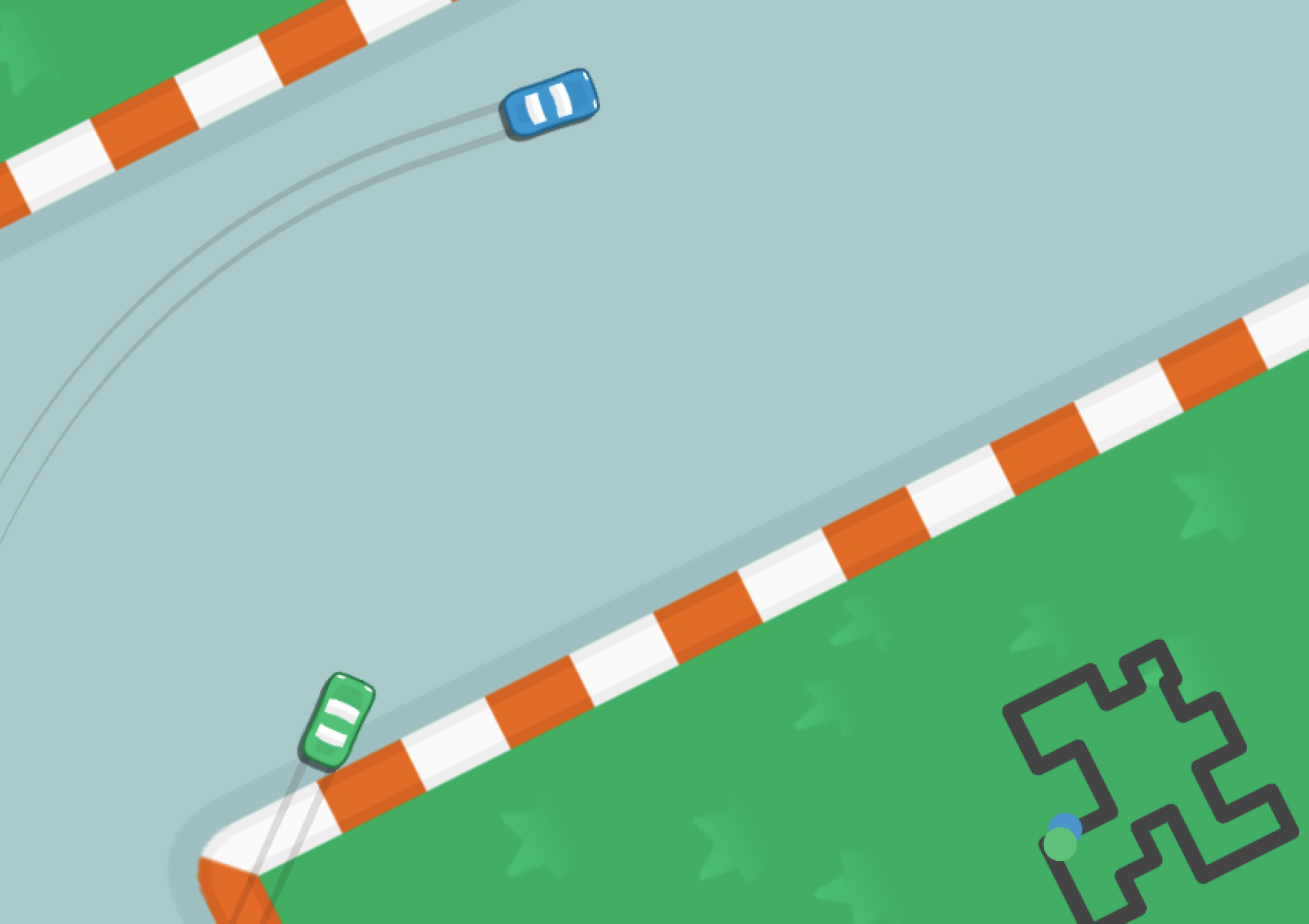
The new Camera Rotation example lets you drive a car around a race track
with the camera turning as you turn the car.
This is done using the new heading and noRotation parameters on Camera
which let you rotate the camera.
Keeping it up
Imagine a chessboard. Both players want to see their own pieces close to them at the bottom of the board, just like in real life. That means, one player is seeing the whole world upside down. The upside down player still should see all their pieces upright, and all the text labels upright too.
In Easel, the multiplayer model is "one shared world" where there is only one set of sprites for all players. How can the same sprite be upside down for one player, and right side up for another player at the same time?
The upright parameter lets you specify which sprites should always be drawn upright, even if the camera is rotated.
It is supported on all relevant graphics functions - ImageSprite, TextSprite,
PolygonHotspot, and more.
A new perspective
Camera rotation is not as simple as applying a vector transform to everything. It is about the content continuing to make sense to another player from a new perspective. For that reason:
- Y-sorting follows the screen, not the world. If you're looking at a forest of trees from a new angle, the trees closer to you (further down the screen) will always obscure those further away (higher up the screen), regardless of the camera rotation.
- The ShadowOffset is also screen-relative. So by default, the shadow always goes downwards, because upward shadows would normally be strange.
Body offset before upright
When a sprite is designated as upright=true, this applies to the sprite itself only,
and does not affect the bodyOffset which designates where on the body the sprite attaches to.
This allows you to create some interesting effects, for example,
a ferris wheel where all the cars are upright, but they still rotate around the ferris wheel.
Or perhaps more commonly, you could pin the text label to the tip of an arrowhead,
while always keeping it upright and readable.
Pitch shifting
A common gameplay effect is to change the pitch of a sound. For example, collecting a bunch of coins could play a sound at a higher pitch for each coin collected, for example. Or perhaps you might just randomly pitch shift the laser sound to make it sound more interesting and less monotonous.
The new playbackRate parameter on Hear and Sing
lets you play a sound faster or slower than normal, shifting its pitch up or down.
Tweening
Imagine you want your hero to slide along particular zigzag path as they leave their castle and enter the stormy battleground.
The new Tween lets you smoothly transition a value through a series of keyframes. It can be used for any value - positions, colors, sizes or anything else that can be represented as a number or vector.
const MotionPath = [@(1, 1), @(6, 7), @(10, 3), @(15, 5)]
for i in RangeInclusive(0, 1s) {
    Pos = (i / 1s).Tween(MotionPath)
    await Tick
}
Facing
Sometimes you just want to point at something.
The new face parameter can be found on sprite functions such as ImageSprite,
and it sets the heading of the sprite such that it points towards another entity or position.
You can use this, for example, to make an arrow that points towards the nearest enemy or the next objective.
Make a PolygonSprite point towards a mouse cursor,
and it could show the area of effect of the next spell you are about to cast.
Rectangular sprite bounds
The radius parameter of ImageSprite now accepts a Vector,
allowing you to specify different radii for the x and y axes.
This is useful for example if you have a tree image that is tall and narrow. You want the tree to be "1 tile" of width, and you don't care how tall it is because the top part is just cosmetic and not part of the hitbox. Previously, because the height is longer than width, you would need to know the precise aspect ratio of your image so you could specify the height that results in the width being 1 tile wide, for example:
ImageSprite(image=@tree.png, radius=8.75, imageAnchor=@(0, 1))
In this case, we know our tree image has a 1:8.75 aspect ratio so we can write the exact number
that gives us our desired width of 1 tile. But this is not very convenient.
Now you can write this:
ImageSprite(image=@tree.png, radius=@(1, 10), imageAnchor=@(0, 1))
In this case, we have given the ImageSprite a max half width of 1 and a max half height of 10.
This gives enough room for the tree to stand tall without us needing to specify the exact number for its height.
If we have multiple tree images with different aspect ratios, this lets them all be drawn with the same code, without needing to know the exact aspect ratio of each image.
Local declarations
While other programming languages have classes, in Easel, the function is the primary unit of code organization.
Sometimes, functions can be used to add ongoing behaviors to an entity that last beyond the function's execution.
In Easel, we call these functions Systems.
For example, a hero might consist of a MovementSystem and a HealthSystem.
You can now declare properties, fields and signals as local to a function. This lets a system encapsulate its own state within its function, letting you keep all relevant parts of the code close together.
pub fn hero.ExcitementSystem() {
    prop hero.Excitement = 100 // A prop that is local to this function

    on ButtonDown(KeySpacebar) {
        Excitement += 10
    }

    Content {
        with Excitement {
            "Current excitement level: " + Excitement
        }
    }
}
Performance improvements
Easel is now 33% faster approximately, thanks to a series of performance improvements.
Out of interest, our benchmarks on an Apple M1 show Python runs a million iterations in 65ms while Easel does it in 28ms,
so we are approximately 2.3x faster than Python on that benchmark, and there is still room to improve!
Other changes
- Both floating-point Numbers (not just integers) and Vectors are now Keyable, meaning they can be used as keys in a Map.
- Deleting a Streak now ends one streak and starts a new one, which lets you create a break in the streak when the player teleports across the room.
- Providing a negative value to the
featherparameter now softens the inside rather than the outside of a polygon. Make some nice WarCraft 3 style selection circles with this new feature! - The compiler will tell you if you are shadowing a built-in function in its error messages.
- A new Flipping example shows how to flip a sprite to face the direction it is moving in.
- A new Parallax example shows how to create a parallax effect with a slow-moving background.